Best practices for working in Code Ocean
If you are new to Code Ocean you may find the 101 series in the training resources helpful as an initial starting point.
General guidance
Capsules vs Libraries
Capsules should have a narrow, well-defined scope and leverage installable libraries as much as possible. Put another way, capsules should configure libraries to answer a question with specific data.
Capsules can and should be re-usable, but ultimately the code in them should be relatively simple and specific to the question at hand. Generally, useful functions should find their way into libraries that can be installed into other capsules’ environments.
The code within a capsule should call library functions in a specific order or be dataset specific.
By placing code in GitHub libraries, it’s easier for code to be adopted by internal and external users for new purposes.
Collaboration and GitHub
Capsules are git repositories. They can be easily synchronized with GitHub if created with the “Clone from Git” option. Recommended workflow:
On GitHub, use the aind-capsule-template repository to create your own repo.
In Code Ocean, create a new capsule via the “Clone from Git” option. Note that this will require github credentials to be added in your CO account settings.
After running “commit changes” in the capsule, you will see a “sync” button to sync your changes to (and others’ changes from) github.
When developing code, collaboration is best done on GitHub, not within Code Ocean.
Individual contributors can work from their own capsules cloned from a shared github repository, and collaborate by syncing their own branches to github.
Alternatively, contributors can use completely different capsules that both depend on a single shared library stored on github, actively sharing changes there.
Library Development
You can use Code Ocean to work with a library that is actively being developed.
To install a package from github in the environment builder, specify it in the format
git+https://github.com/<organization>/<package>.git#egg=<package>(note that the package name appears twice). This will install and pin the latest version (by its commit hash), which you can force it to update on a future build by deleting the pinned version to move to the latest again (as with other environment builder packages).To edit the library from within Code Ocean: the above method produces an “editable” installation with source code in
/src. You can access (and edit) this by “Add folder to workspace” in code-server/VS Code (not possible in JupyterLab). Be very careful to sync your changes back to github when you edit – they will be erased when the capsule is rebuilt!Alternative approaches to developing a library:
If you primarily develop the code in a single capsule but want to make it available to other users and capsules:
As long as the capsule is synced to github, you can make it installable as a library by simply creating a pyproject.toml in the root of the capsule. Follow the typical capsule layout with library modules in a subfolder of
code, and point to that location from the pyproject.toml (along with setting appropriate dependencies etc).If library code doesn’t need to be actively tested on cloud data:
Develop the library locally, sync changes to github, then update any capsules that rely on it: either reset the version and rebuild, or reinstall within a running workstation (
pip install -e git+https://github.com/<organization>/<package>.git#egg=<package>) and don’t forget to also update the environment on the next rebuild.If you just want to briefly test and edit an existing library with cloud data:
You can create a new capsule cloning the library’s github repo directly. You will need to configure an appropriate environment after creating the capsule (if you own the repo you may want to save this by committing the dockerfile). After launching a workstation, install the library in place via
pip install -e .
Tips for Cloud Workstations
JupyterLab
In a JupyterLab workstation, you can pop out notebook figures by right clicking and selecting “Create New View for Output.” They won’t be in floating windows, but you can keep them in view without scrolling and organize them within different tabs.
Your matplotlib code runs, but the figures aren’t displayed under your notebook cells? You likely need to set the backend of matplotlib to “inline” at the top of your notebook, using either:
%matplotlib inlineget_ipython().run_line_magic('matplotlib', 'inline')
VS Code (code-server)
Processes running in code-server will be terminated when the connection is closed, unlike in JupyterLab. Keep your tab open and avoid resetting your network connection (this can happen from connecting to a dock with wired ethernet, or switching routers).
For best results, use a more recent version of code-server than the CO default: either by using a “code-server extensions pack” base image or editing your postInstall following this example
The code-server extensions pack environment has recommended settings preconfigured (as machine settings). If not using this environment you may want to copy these manually, or at least be sure to change the following essential settings:
“Git: Use Integrated Ask Pass”: False
If your GitHub credentials are attached to your Code Ocean account, this will let code-server use those credentials rather than prompting you to log in to github for every git operation!
“Python: Language server”: “Jedi”
On certain versions of code-server, language server features like autocompletion and hints will not work in Jupyter notebooks with the default “Auto” setting. Alternatively, install the “basedpyright” extension, and set the language server to “None”
Customization and Personalization
User-configured settings (e.g. themes, font color, etc) will generally be saved when the workstation is on hold, but not when it is shut down and rebuilt. If you want to customize your workstation more permanently, you can use the postInstall script to pull configuration files from a github repo.
git clone <url-of-config-files>
# move files to relevant locations, typically within /root
This won’t work for VSCode/code-server settings, as those are stored inside the capsule filesystem (not available during the Docker build) – on the plus side, setting changes here are persistent across rebuilds.
Customizations of this nature are specific to code development, and shouldn’t be included when sharing capsules with others. Before sharing the capsule, remove the customizations from the postInstall file.
Tips for building capsule environments
If your environment build fails, find the issue by opening the build log (from the error message or the capsule timeline) and searching for errors, typically towards the end of the log.
When debugging a tricky build, you may consider making a few duplicates of the capsule so that you can test different variations simultaneously.
To improve very slow builds, consider:
conda packages: make sure to use an environment with the mamba package manager instead of the older conda (both the “conda” and “mamba” entries will install via mamba).
pip packages: check the build log for extensive “backtracking” where pip tries many versions of a package sequentially in an attempt to resolve dependency conflicts. Pin the versions of these dependencies to eliminate this.
Tips for Pipelines
Resource labels
Any pipeline with active usage beyond initial testing needs a unique label
so we can monitor cost and execution. Create a nextflow.config file in the pipeline folder
(same folder as the main.nf script) and put the following in it:
process.resourceLabels = ['allen-batch-pipeline': 'YOUR-TAG-GOES-HERE']
With the tag replaced by a short, unique, descriptive name for your pipeline.
Template repository
Production-level pipelines should be based on the aind-pipeline-template template repository. This includes a license, recommended nextflow config, and automated versioning and release.
How do I…?
Install the GitHub Copilot extension in VSCode?
The VScode in Code Ocean is actually code-server, which does not support every extension in the VSCode extension marketplace. Instead, you can use the following script to download and install extensions from the official marketplace: https://gist.github.com/tmchartrand/0c46bdec6a4205aa7ce7555fd8f4c3b5
(Note that Pylance is one extension that cannot be installed at all, even using this workaround)
Avoid reinstalling VSCode extensions every time I rebuild?
By default, extensions are not saved across rebuilds. You can, however, configure the postInstall script to either install a list of extensions or move the extensions directory inside the capsule filesystem so manually installed extensions will persist (both options are not possible together).
Make my Streamlit app running in Code Ocean externally accessible?
Currently this is not possible. Consider trying the free hosting services provided by Streamlit or Huggingface, or requesting SciComp support for deploying your app on AWS.
Keep variables in memory while shutting down cloud workstations?
Instance RAM state is not preserved when instances are paused. By
default, instances should remain live for 180 min before automatically
pausing. As a workaround, use a disk cache (on /scratch) to save results
for any slower-running functions – in Python this can be as simple as adding a
decorator from the built-in joblib.
(https://joblib.readthedocs.io/en/latest/memory.html)
Download a data asset to a local machine?
Generally, we should minimize how much data we are downloading from Code Ocean. This is particularly true of larger data (GBs) that require long, easily interruptible download times. That said:
You can hover over most data assets in the My Data viewer and there is an option to download.
If the data-asset is “external” then CO does not support direct downloads.
You can run a cloud workstation, save the data-asset as a file in the “results” folder, and then download the dataset.
s3fs is a python package for making AWS S3 bucket data look like files and folders.
Generate interactive figures outside of a jupyter notebook?
Interactive figures that open in new windows (e.g. the “agg” or “qt” backends for matplotlib) are not useable within the browser. For this reason, in-browser widgets like JupyterWidgets are the preferred way to open interactive figures.
Python users: Code Ocean also is able to open streamlit applications defined within a capsule. R users: the same is true for Shiny apps.
Other web apps (in addition to streamlit/shiny) can be viewed by running in a vscode/code-server workstation and using the built-in port-forwarding, which generates a link to access the web app process in a new tab.
Transition an existing capsule without a github link to a new github-backed capsule?
In brief: follow the steps for cloning a capsule to generate a Code Ocean git URL (https://docs.codeocean.com/user-guide/compute-capsule-basics/version-control/clone-via-git ), then use this URL to import a new repository into github (https://github.com/new/import using your CO account email and API token as credentials). Finally, create a new capsule on Code Ocean as a clone of this new github repo.
Add my github credentials to code ocean?
https://docs.codeocean.com/user-guide/git-provider-integration-guide/setting-up-the-integration
As shown in the docs, make sure to use a github classic token (https://github.com/settings/tokens), not a fine-grained token. If you are accessing internal repositories, you will also need to select “Configure SSO” for the token and authorize it to access the relevant organization.
Start a workstation through Code Ocean and then SSH to it?
This is technically possible but not supported now. Compute instances are in a private network that is not open to public SSH access. This is a security best practice. That said, if there is sufficient demand for this workflow we can look into supporting this (comment here).
Request a new base image?
Base images can come from any public docker image registry, but must be created by an admin. Make a request by posting on the Code Ocean Teams channel or opening a github issue on the SciComp requests board.
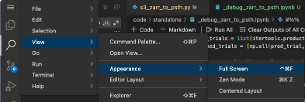
Reduce the screen real-estate used by Code Ocean (full-screen mode)?
In Mac, press ^ + cmd + F, or see below. In Windows, press F11.
Create a nextflow.config file to configure process execution?
Add a nextflow.config file to the pipeline directory. The process scope controls process execution in the Nextflow workflow. Add the parameters below to your nextflow.config file:
process {
  executor = 'awsbatch'
  queueSize = 100
  errorStrategy = 'retry'
  maxRetries = 20
  maxErrors = 100
}
executor: What is executing the pipeline.
queueSize: Number of parallel instances that can be executed at any
given time.
errorStrategy: How the pipeline should handle failures; in this case,
it will retry.
maxRetries: How many retries are performed.
maxErrors: Threshold for error accumulation in a given process.
Configuration white paper is found here to see what other configurations are available.
Bugs and other gotchas
This list will be updated periodically, with recent issues added at the top of the list and resolved issues removed.
Jupyter notebook workstation fails to launch
If you’re trying to run Jupyter notebook and it fails to launch, you may be running an environment that has a recent version of JupyterLab (>4.0) without the notebook executable. You can fix this by:
If JupyterLab has been added to your conda package list, remove it
Add the “notebook” package to your conda package list.
Pipeline API “permission denied” errors despite being able to run capsules
This problem can arise if two or more users collaboratively build a pipeline together, and at least one capsule does not have sufficient AWS credential secrets attached. This will show as a bypassable warning when running the pipeline manually with “Reproducible Run”, but will not run via API. Attach AWS secrets to all capsules and the issue is resolved.
Environment build fails with "/git-askpass": not found
You may see an error like this when running a reproducible run or rebuilding your capsule environment:
ERROR: failed to calculate checksum of ref ...: "/git-askpass": not found
Why this happens: Code Ocean switched its build system to Docker BuildKit, which builds images differently from classic Docker. As part of that migration, the credential helper file that Code Ocean injects into the Docker build context was renamed from git-askpass to git-ask-pass. The rename was intentional: BuildKit’s layer caching would have continued reusing broken cached layers containing the old filename, so the rename forced those layers to be invalidated and rebuilt. Capsules whose Dockerfiles still reference the old name will fail until updated.
Fix: Open your capsule’s environment/Dockerfile and change:
COPY git-askpass /
to:
COPY git-ask-pass /
If your capsule has no dependencies on internal GitHub repositories, you can instead simply remove the COPY git-askpass / line (and the ARG GIT_ASKPASS / ARG GIT_ACCESS_TOKEN lines above it) entirely.